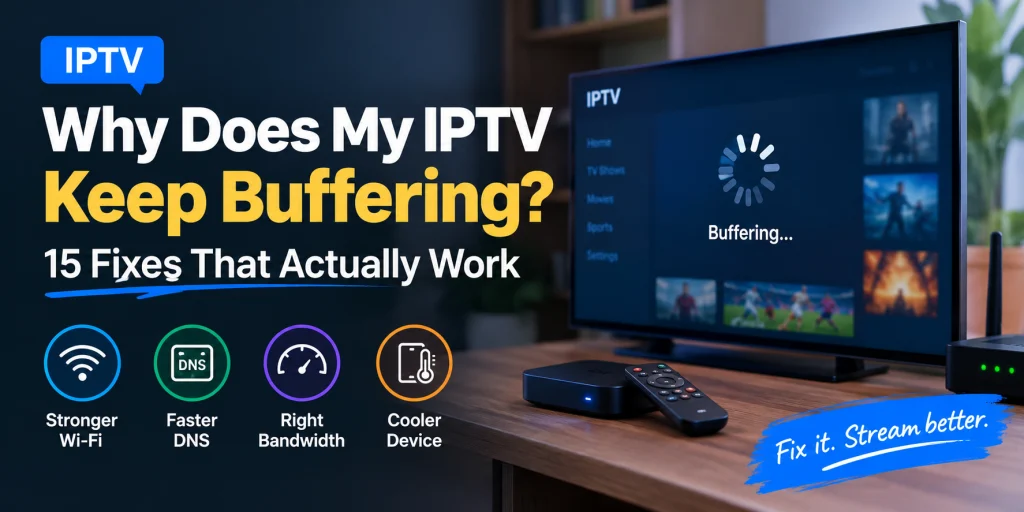
Why Does My IPTV Keep Buffering? 15 Fixes That Actually Work in 2026
You press play. The channel runs for a minute, then the loading circle appears.
Maybe the picture freezes only on 4K. Maybe it happens every night around the same time. Maybe your phone gets perfect Wi-Fi while the TV keeps stuttering.
Those details matter more than any setting you’re about to change.
The fastest way to fix IPTV buffering isn’t to change five things at once and hope. Find the pattern first, then test the one layer most likely to be failing.
Changing providers is the last thing I’d do, not the first. Most guides will tell you the same, and they’re right for the wrong reason: it’s not that one cause dominates every household, it’s that the diagnostic order works. Test the device that actually buffers. Isolate network, then device, then app, then source.
Start With This 60-Second Test
Before you touch DNS, reinstall anything, or buy hardware, answer these:
| What happens | Most likely area to check |
|---|---|
| Every channel buffers on every device | Home network or ISP |
| Only 4K or 8K channels buffer | Throughput, Wi-Fi stability, or device decoding |
| One category buffers while others are fine | That stream group or source |
| Buffering appears around the same evening time | Network congestion or routing |
| The problem started after an app update | App version, cache, or decoder |
| Smooth at first, degrades after 15 to 30 minutes | Heat, storage, or background processes |
| One TV buffers while another device on the same network doesn’t | Device, placement, or player settings |
This check can save you an hour of random setting changes.
How Much Internet Speed Does IPTV Need?
The number printed on your broadband package means nothing here. What matters is what reaches the streaming device, and whether it holds.
For reference, Netflix recommends at least 5 Mbps for 1080p and 25 Mbps for 4K UHD (help.netflix.com/en/node/306). IPTV varies more than that, because encoder, codec, bitrate and source all move the number around.
A working range:
| Quality | Approximate sustained bandwidth |
|---|---|
| SD 480p | 3 to 5 Mbps |
| HD 720p / 1080p | 8 to 15 Mbps |
| 4K UHD | 25 to 50 Mbps |
| 8K UHD | 50 to 100 Mbps |
Working targets, not hard limits. A well-compressed 4K stream can use less bandwidth than a badly encoded 1080p one. At the top end, 8K IPTV streaming is where a wired connection stops being optional.
Then there’s the speed test trap. A 300 Mbps line doesn’t mean your Firestick is getting 300 Mbps down the streaming path. Wi-Fi distance, interference, router load and where the test server sits all change the result.
Run it on the device that buffers.
15 Ways to Stop IPTV Buffering
1. Test the Connection on the Streaming Device
Run the test on the Firestick, Android TV box or Smart TV where the buffering actually happens. No speed test app on it? Use a phone in the same room, on the same band, as a rough comparison.
A phone beside the router and a TV mounted across the room will give you completely different numbers. That gap is the whole point.
Write down one figure in particular: the speed available at the moment the stream starts buffering. If a 4K feed needs far more sustained bandwidth than the device is getting, no player setting will fix it.
2. Restart the Modem, Router, and Streaming Device
Modem, router, device. In that order. Around 60 seconds unplugged on the modem before the router comes back.
Obvious? Yes. It also clears stuck sessions that survive an app restart, and it gives you a clean baseline to compare against.
3. Move From 2.4 GHz to 5 GHz Wi-Fi
Here’s where people get it wrong. 5 GHz is usually better for high-bitrate streaming, but only if the TV is close enough to the router to hold a strong signal on that band.
The trade-off is range. 5 GHz doesn’t punch through walls the way 2.4 GHz does. Force a distant TV onto 5 GHz and you can easily end up worse off than before, because a weak 5 GHz signal drops more packets than a solid 2.4 GHz one.
So test both. Don’t assume.
If there’s any way to run Ethernet, even temporarily, do that first. A cable removes the entire Wi-Fi link from the equation, which makes it the cleanest single test available to you. If the buffering vanishes on Ethernet, you’ve just located your problem without touching a single app setting. Our global IPTV setup and performance guide goes deeper on this across regions.
4. Try a Different DNS Resolver
DNS won’t add bandwidth. It only affects how quickly a hostname resolves, and that’s worth testing but not worth overselling.
Cloudflare: 1.1.1.1 and 1.0.0.1. Google: 8.8.8.8 and 8.8.4.4. Cloudflare documents setup options at developers.cloudflare.com.
Then test the same channel five times. One fast load proves nothing.
5. Check What Else Is Using the Connection
The thing eating your bandwidth probably isn’t visible:
- cloud photo backups
- game downloads
- large software updates
- security-camera uploads
- other video streams
- video calls
This bites hardest when the household is already near its usable limit. A 4K stream can look rock solid when you’re alone at home, then fall apart the moment three other devices start transferring.
Pause them. Retest. If several screens genuinely need to run at once, read our guide to IPTV across multiple devices. Connection limits are usually the real constraint.
6. Compare Afternoon and Evening Playback
Same channel at 3 PM, then again at 9 PM. Same device, same quality setting if you can pin it.
When the result flips reliably at the same time each day, you’ve got evidence of something time-dependent. Congestion, routing changes, household traffic. Not a random player failure.
Throttling? Maybe. One repeatable pattern isn’t proof of it, though plenty of people stop there.
7. Test the Same Stream Through a VPN
A diagnostic, not a fix. Don’t start here.
Buffering at 9 PM on your normal connection? Connect to a nearby VPN server and play the same channel. Consistently smoother and you’ve learned something real about the route.
It still needs interpretation. A VPN fixes one path and wrecks another. Encryption and distance cost you throughput too. It can expose a network-path problem, but it won’t make an undersized connection faster than it is.
On Firestick and Android TV hardware, WireGuard is the sensible choice when your VPN supports it. OpenVPN will cost you more CPU than those devices can spare.
Device Problems Can Look Exactly Like Network Problems
Half the time, what looks like an IPTV buffering problem is a device problem wearing a network costume.
8. Free Up Storage
Low free space makes streaming devices sluggish, especially once apps are caching data while also trying to keep EPG and playlist information current. Older Fire TV and Android TV hardware runs into this fast.
Amazon lists only about 4.5 GB of usable internal storage on the Fire TV Stick 3rd generation, out of 8 GB total. [📝 建议在此加入你的经历:你见过的存储最满的一台设备是什么情况]
Delete apps you don’t use. Remove leftover APK installers. Clear old downloads.
Is 1 GB free the magic threshold? No, and anyone who gives you one number is guessing. There’s no storage floor that applies to every app on every device. Treat low space as a warning sign, not a guaranteed diagnosis.
9. Reinstall the IPTV App
When did it start? That question beats any version number.
Buffering that began right after an update points squarely at the update. Reinstall the current version first. Still buffering? Compare against a different compatible player before you go further.
And check the app, not just the playlist. A perfectly valid playlist on a player that can’t decode the stream properly looks exactly like a dead channel.
10. Switch Between Hardware and Software Decoding
Buried in playback settings on most players, and routinely ignored. Hardware decoding hands the work to the device’s dedicated video hardware; software decoding leans on the CPU.
Try one, play the same channel for several minutes, switch, repeat. Five seconds tells you nothing.
Decoder trouble looks different from network buffering, once you know what to watch for. Stuttering, audio drifting out of sync, dropped frames, or playback falling apart on specific codecs while others hold up fine.
11. Check Whether the Firestick or TV Box Is Overheating
A customer had a stick shoved into the gap behind a wall-mounted TV. Playback was fine for about twenty minutes, then it started stuttering every few seconds. Moved it out into open air, same channel, no problem.
Location does that. A stick plugged directly behind a television has almost no airflow. Add a warm panel a few inches away, several hours of playback, and a cramped HDMI area, and it runs far hotter than the same device on an open shelf.
Amazon notes that Fire TV devices can get hot in normal use and recommends keeping them away from heat sources and letting a hot device cool down. They also document the HDMI extender as a fix for tight spaces behind a TV. [待补:Amazon 官方支持页链接]
The timing is your tell. Smooth at startup, stuttering twenty minutes in, heat climbs the suspect list.
IPTV App Settings Worth Testing
Player settings are the layer people skip most, and the one where a two-minute change sometimes ends weeks of IPTV buffering.
12. Lower the Stream Quality
Your TV supporting 4K doesn’t mean your connection does.
Watch the same channel at 4K, then switch to 1080p. Buffering disappears and stays gone? Then the bandwidth or processing demand of the higher-quality stream was your problem all along.
Stable 1080p beats a 4K picture that stops every few minutes. Every time. If you want to know what a properly provisioned UHD feed looks like, our IPTV with 4K channels overview covers it.
13. Turn Off Timeshift or Catch-Up While Testing
Timeshift writes playback data constantly so you can pause live TV. On a device with slow or nearly full storage, that’s one more variable you don’t need.
Turn it off, test, turn it back on if nothing changed.
14. Clear the Cache and Re-sync the Playlist
Worth doing when trouble is limited to certain channels, or when an app starts behaving oddly right after a playlist change.
Clear the cache. Remove the playlist, add it back, let the EPG refresh fully.
Then watch what happens. Most channels fine while one group keeps failing? Stale playlist data is a real possibility. Every channel still buffering? The playlist probably isn’t your problem.
When the Problem Really Is on the Server Side
15. Test Several Unrelated Channel Groups
Run this before you blame the provider.
Pick channels from different categories. One group buffers while several others stay smooth for half an hour? Your local network is unlikely to be the common cause.
Now the opposite. You’re on Ethernet. Measured device speed is stable. Multiple unrelated groups start buffering at the same time, and it repeats for days.
At that point the provider’s infrastructure is a reasonable suspect.
Notice how much stronger that is than “IPTV is buffering, so the server must be bad.” One is a diagnosis. The other is a shrug.
Firestick Troubleshooting
Firesticks get their own section because the hardware is small and the storage is tight.
Check the physical setup first. Amazon recommends avoiding excessive heat and letting a hot device cool down. Then work through:
- Free storage
- Power connection
- Wi-Fi band
- App version
- Decoder mode
- Device temperature
One at a time. Change all six at once and you’ve learned nothing, even if it starts working.
For more Firestick-specific guidance, see our IPTV subscription setup for Firestick guide, or the IPTV servers for Firestick comparison if the hardware itself is the suspect.
What About Smart TVs?
Built-in Smart TV apps range from perfectly usable to barely functional, and the hardware behind them varies wildly.
If an IPTV app buffers on the TV while the same network plays smoothly on a separate streaming box, test the external device before you go touching your internet setup. That single comparison tells you more than an evening of settings.
Testing on a phone? Put it in the same room and on the same band as the television. A phone beside the router against a TV two rooms away isn’t a comparison, it’s a rigged test.
MAG devices want a different approach again. Try wired early, particularly on hardware that was designed for Ethernet in the first place. Setup steps for MAG, Smart TV, Android, iOS and Windows are in the IPTV installation tutorial.
A 10-Minute IPTV Buffering Test
Here’s the sequence I actually use when someone tells me “it keeps buffering and I’ve already restarted everything.”
Minute 1 to 2. Speed test on the streaming device itself.
Minute 3. Play an HD channel. Note whether it buffers.
Minute 4. Play a 4K channel.
Minute 5. Switch to Ethernet if you can.
Minute 6. Restart router and streaming device.
Minute 7. Try 5 GHz instead of 2.4 GHz, or the reverse.
Minute 8. Check free storage and device temperature.
Minute 9. Switch decoder mode.
Minute 10. Test two unrelated channel groups.
Ten minutes later you know considerably more than you did. And you’ve changed fewer settings, which matters more than it sounds. Running this before a big match? Our live football streaming setup guide picks up where this leaves off.
When Should You Stop Troubleshooting Your Own Setup?
A reasonable stopping point: stable wired connection, adequate free storage, device not overheating, app reinstalled, decoder settings tested, and several unrelated channel groups still buffering simultaneously.
That’s a different situation entirely from one 4K channel freezing on an older Wi-Fi-only device.
For deeper setup and performance guidance, see our IPTV server review, the best European IPTV server comparison, and the IPTV subscription guide.
The goal isn’t to keep changing things until something happens to work.
Find the failing layer.
Frequently Asked Questions
Why does my IPTV buffer only at night?
Test the same channel mid-afternoon, then again in the evening. A pattern that repeats at the same time points at congestion, routing or other peak-hour conditions. It doesn’t automatically mean the source is faulty.
Why does IPTV buffer on 4K but not HD?
Two possibilities, and they’re not exclusive: the higher-quality stream needs more sustained throughput, and your device has more decoding work to do. Play the same channel at 1080p. Problem gone? You have your answer.
Does changing DNS stop IPTV buffering?
It can speed up hostname resolution. It will not add bandwidth, whatever anyone tells you. Test it, then compare actual playback over several runs rather than trusting one fast channel load.
Will a VPN fix IPTV buffering?
Only when the network path is part of the problem. A VPN changes the route, which makes it a useful comparison. It can just as easily make things worse.
Why does IPTV buffer on Firestick but not on my phone?
Device causes first: storage, temperature, power, Wi-Fi position, decoder behaviour. Your phone likely has a better radio and more processing headroom than a stick that’s been running hot behind a TV for two years.
Does clearing the cache help?
Often yes, especially after app or playlist changes. Clear the cache, retest, and only then bother removing and re-adding the playlist.
Why does one IPTV channel keep buffering?
Pull up channels from several other groups. If it’s genuinely just the one, your whole home network probably isn’t the culprit.
How do I know whether the problem is my Wi-Fi or the IPTV service?
Ethernet is the tiebreaker. Same device, same channels, stable over a cable? Start with Wi-Fi. Still buffering on a solid wired connection across multiple groups? The server side becomes the more plausible explanation.